Google Earth Studio vs Globe Studio: Which One Should You Use?
Google Earth Studio and Globe Studio both create globe animations, but they take fundamentally different approaches. Understanding the difference will save you hours of frustration — and help you choose the right tool for your project.
The Core Difference
Google Earth Studio animates real satellite imagery from Google Earth. You fly over actual terrain, real buildings, and real landscapes. The output looks like aerial drone footage rendered from space.
Globe Studio creates stylized, cinematic 3D globe animations. You work with a custom-rendered globe that includes atmospheric effects, sun simulation, flight arcs, country highlighting, and lens effects. The output looks like a broadcast news intro or a high-end corporate animation.
These are complementary tools, not competitors. The question is which look you need.
When to Use Google Earth Studio
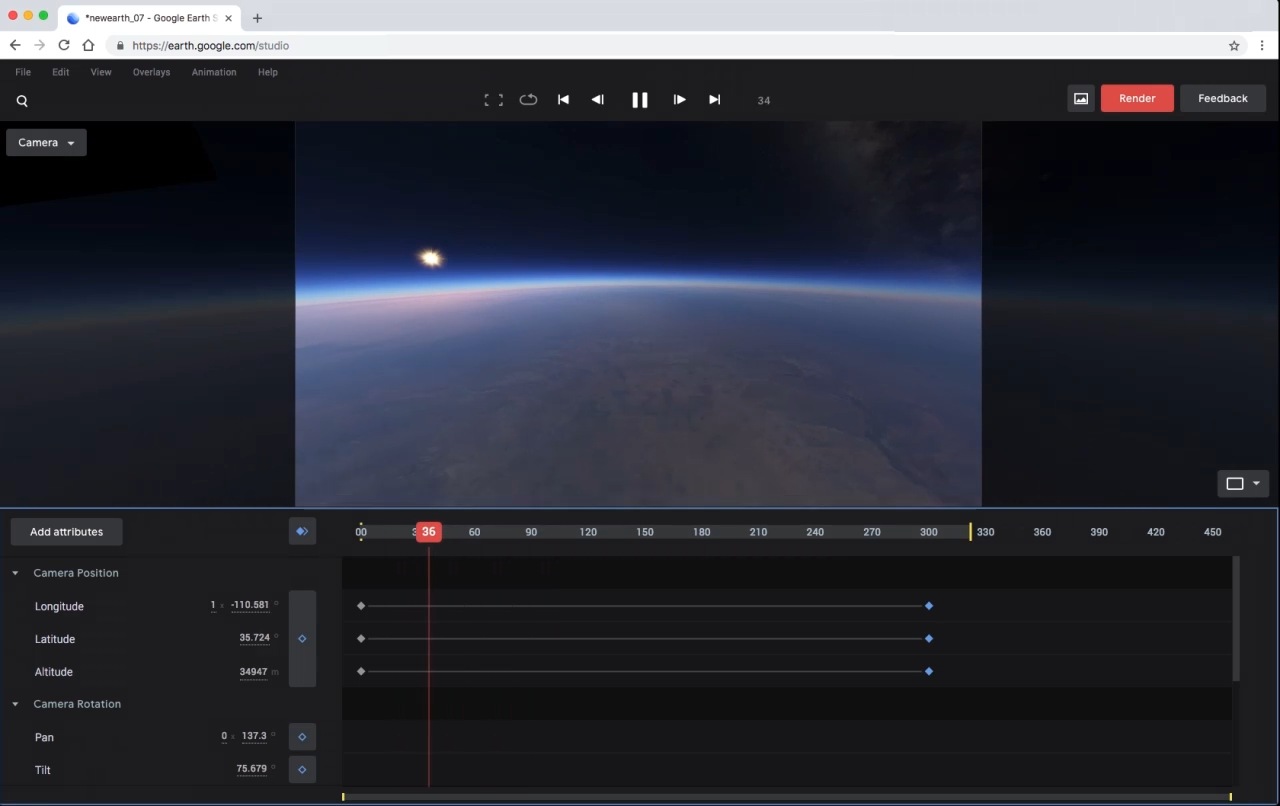
Google Earth Studio is the right choice when:
- You need photographic realism of a specific location
- You want to show real terrain, buildings, and landscapes
- You're creating a virtual flyover of a real place
- Your project requires Google Maps-level geographic detail
- Budget is zero (Google Earth Studio is free)
Google Earth Studio excels at showing "what a place actually looks like from above." If your audience needs to recognize a specific neighborhood, building, or landscape, this is your tool.
When to Use Globe Studio
Globe Studio is the right choice when:
- You need a cinematic, stylized globe look (think CNN, BBC, or documentary intros)
- You want animated flight arcs connecting cities
- You need country highlighting with custom colors
- You want atmospheric effects, sun simulation, and lens flares
- You need to work offline without a browser
- You want consistent branding that doesn't depend on Google's imagery
Globe Studio excels at telling a global story. Migration patterns, business operations across continents, travel itineraries, historical trade routes — anything where the point is "showing movement across the world" rather than "showing what a place looks like."
Feature Comparison
Visual style: Google Earth Studio gives you photographic satellite imagery. Globe Studio gives you cinematic 3D rendering with NASA Blue Marble textures up to 16K, atmospheric scattering, and custom shaders.
Flight arcs: Globe Studio has built-in animated flight arcs with gradient trails, customizable styles (solid, dashed, dotted), and per-segment overrides. Google Earth Studio has no flight arc feature at all.
Country highlighting: Globe Studio can highlight individual countries with fill colors, borders, or both, with per-location overrides. Google Earth Studio cannot highlight countries.
Atmosphere and lighting: Globe Studio includes realistic atmospheric scattering, adjustable sun position, cloud layers, city lights, a star field, and anamorphic lens flares. Google Earth Studio has basic sun position controls.
Pins and labels: Globe Studio offers fully customizable pins and labels with typography control, colors, backgrounds, and anchoring. Google Earth Studio has limited marker support.
Export: Both support up to 4K export. Globe Studio exports directly as MP4 (H.264), WebM (VP9), or PNG sequences. Google Earth Studio exports individual frames that you need to composite in After Effects or another editor.
Platform: Globe Studio is a standalone desktop app that works offline. Google Earth Studio requires Chrome and a Google account and cannot work offline.
Camera control: Google Earth Studio uses a keyframe-based timeline. Globe Studio uses a storyboard-based editor where you define locations and the app handles camera transitions automatically, with manual override options.
The Export Workflow
This is where the tools differ significantly in practice.
Globe Studio exports directly to ready-to-use video files. Click export, choose your format and resolution, and you get a finished MP4 or WebM file. You can drop it directly into your editing timeline.
Google Earth Studio exports individual frames as JPEG or PNG sequences. To get a video file, you need to import these frames into After Effects, Premiere Pro, or another editor and render them out. Google Earth Studio also exports camera data for After Effects, which is useful for compositing but adds steps to your workflow.
For most creators, Globe Studio's direct video export is significantly faster from project to final output.
Cost
Google Earth Studio is free but requires a Google account and Chrome. There is no paid tier — you get everything for free.
Globe Studio has a free tier (720p export with watermark) and a Pro tier ($19.99 one-time) that unlocks 4K export and removes the watermark.
If budget is the only consideration, Google Earth Studio wins. But if you factor in the time cost of its export workflow and limitations, Globe Studio's $19.99 one-time cost is hard to beat.
Can You Use Both?
Absolutely. Many creators use Google Earth Studio for location-specific aerial shots and Globe Studio for cinematic globe overviews and flight path sequences. The two tools complement each other well — Google Earth Studio for "zoomed in" realism and Globe Studio for "zoomed out" cinematic storytelling.
The Verdict
If you need satellite imagery of real places, use Google Earth Studio. If you need cinematic globe animations with flight arcs, country highlights, and atmospheric effects, use Globe Studio. If you're building a video that needs both, use both.
For the majority of creators who want globe animations for intros, transitions, and storytelling, Globe Studio delivers better results faster and with more creative control.